
Documentation
Your first few minutes.
Open the app, save a calculation, and make the workspace feel like yours.
Open CalciteQuickSolve
Launch the Windows desktop app. The calculator is ready without an account. Use the home page’s download section for the public installer when it becomes available.
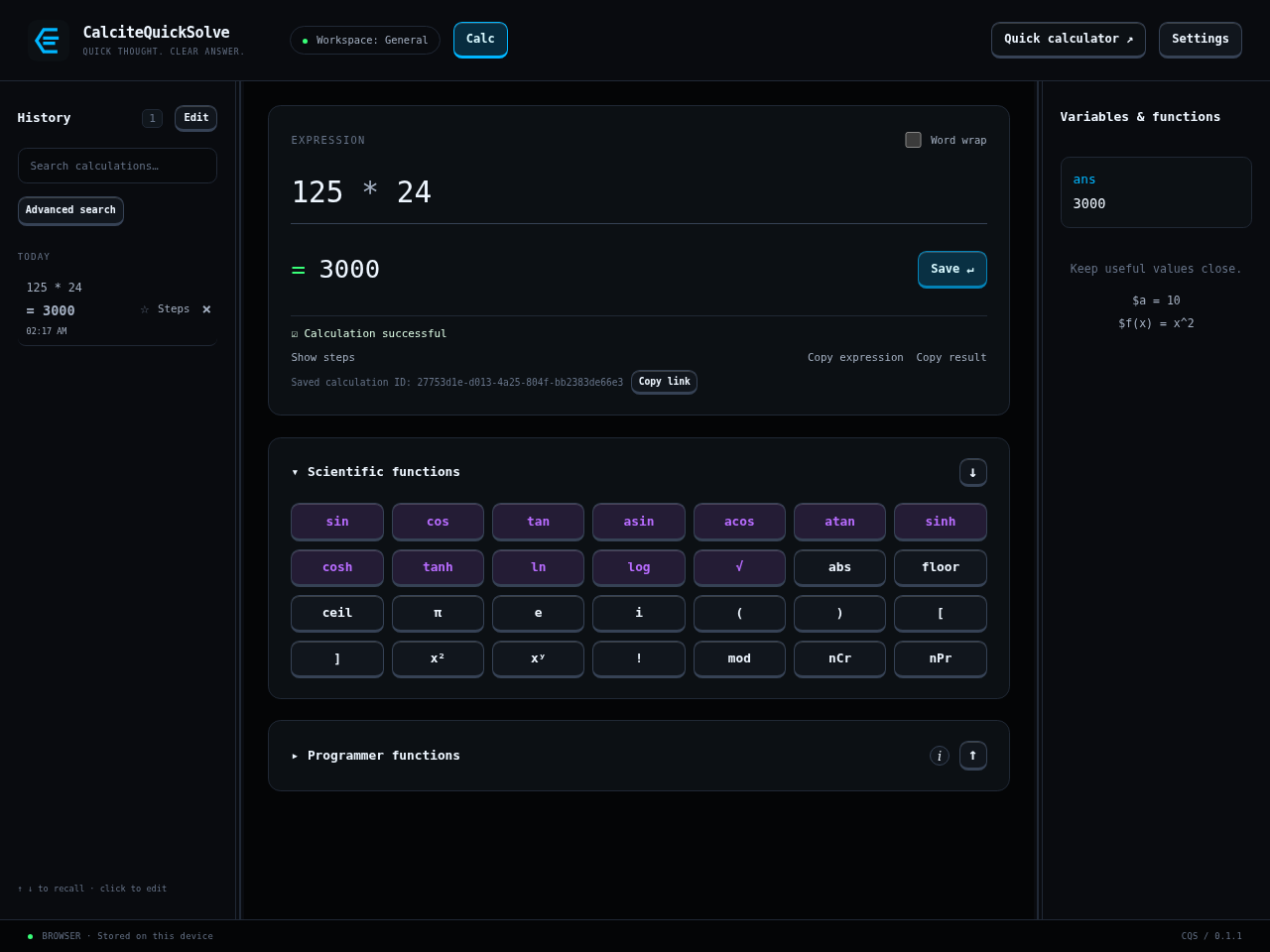
- Type 125 * 24 in Expression. The result updates as you type.
- Press Enter to save the expression and result in History. The input clears for your next calculation.
- Use the full workspace for history, variables, and graphs.
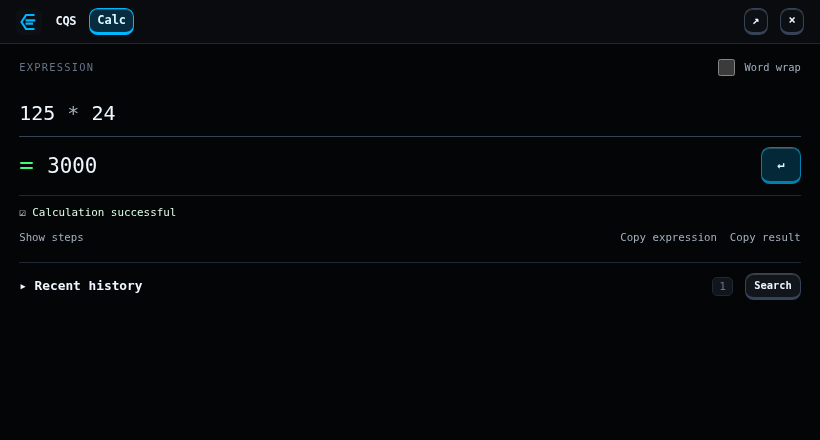
Keep Quick Calc nearby
Press Ctrl + Alt + Space to open the small calculator from your desktop. Press Escape when you are finished. You can customize shortcuts in Settings.
- Enter saves the calculation and clears the quick input.
- Ctrl + Shift + C copies the result.
- The arrow keys recall earlier expressions; Ctrl + L clears the input.
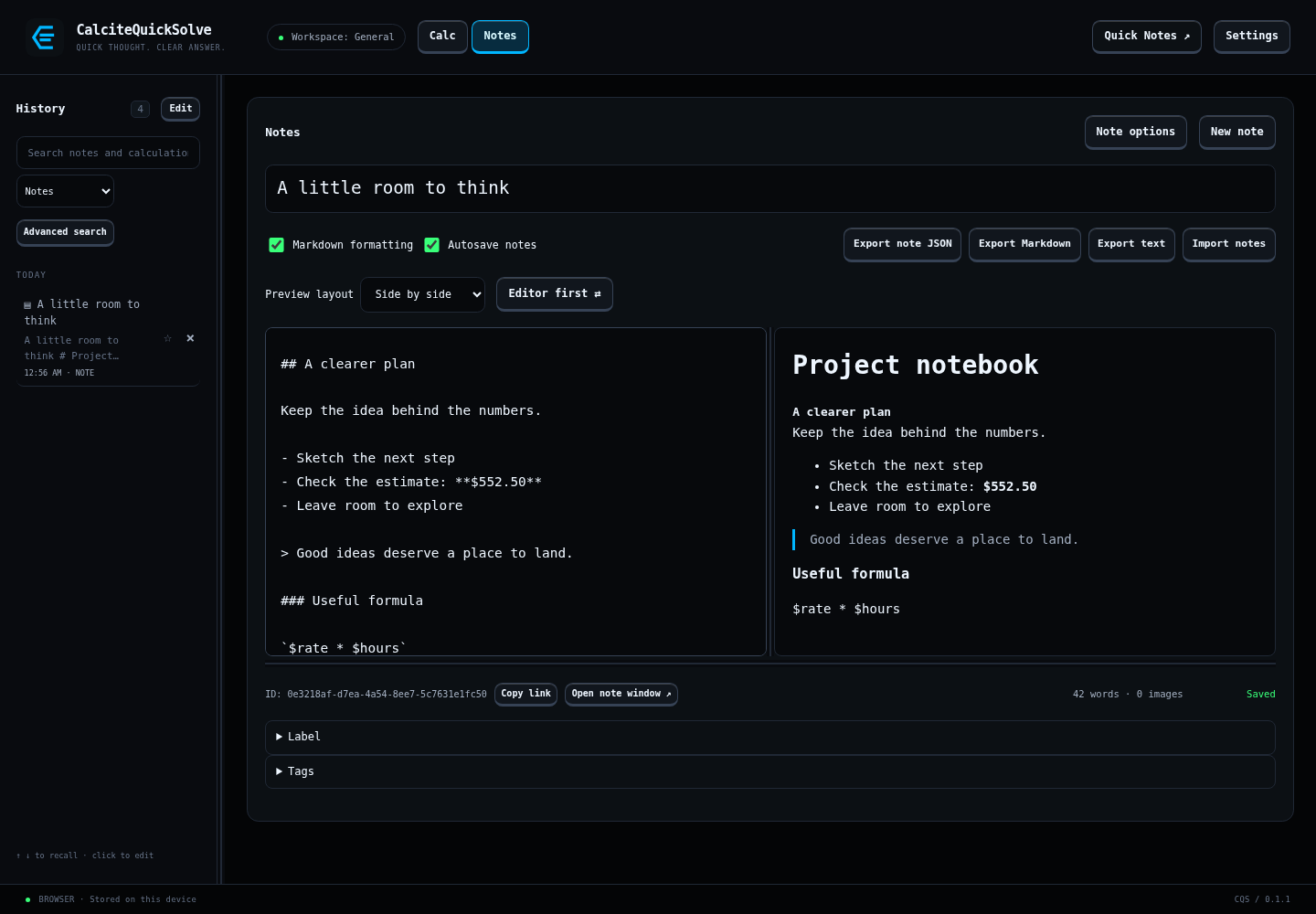
Try Notes
Open Settings → License and start the 30-day Notes trial. Switch to Notes, choose New note, and give your note a title.
Choose what to enable
Settings contains themes, layout options, security, semantic search, and MCP access. Semantic search and MCP are both off by default; enable them only when you want those workflows.
- Enable semantic search to make Begin download and Import model folder available. Enabling alone never starts a download.
- MCP needs a configured vault and an unlocked UI to create agent grants.
- Choose a backup location and make a first export before building a large library.