
Documentation
Expressions that build on each other.
Use live results, saved variables, and your own functions to keep repetitive work small.
Write an expression
Enter a numerical expression in the calculator. Results appear as you type; Enter saves the calculation to History and clears the input. Use Ctrl + L to clear the current expression without saving. Parentheses make the intended order explicit.
125 * 24
(125 + 75) / 4
sqrt(144)
Use scientific functions
Open Scientific functions beneath the expression field to insert a built-in function or type the call directly. Built-in scientific and programmer calls are case-insensitive and do not use a $ prefix.
sin(30 deg)
SIN(30 deg)
sqrt(144)
ln(e)
log(100)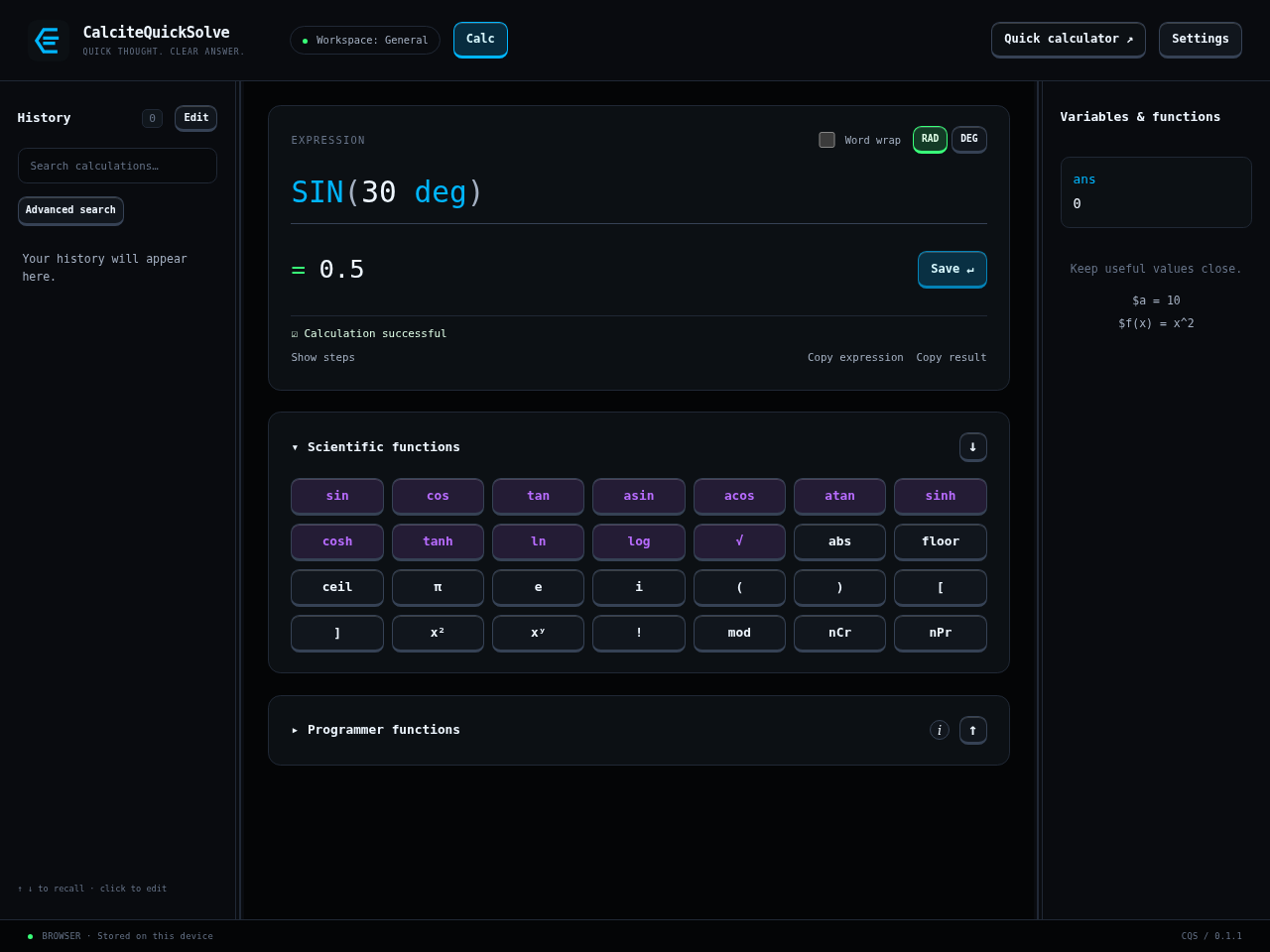
Save a variable
Prefix a variable name with $. Enter each definition separately, then use the names in later expressions. Update a saved definition when the underlying value changes.
- Variable names start with $ followed by a letter or underscore, then letters, digits, or underscores.
- Click a saved name in the sidebar to insert it, or its value to edit the definition.
- Built-in constants such as pi and ans, and graph coordinates x and y, stay bare.
$rate = 85
$hours = 6.5
$rate * $hours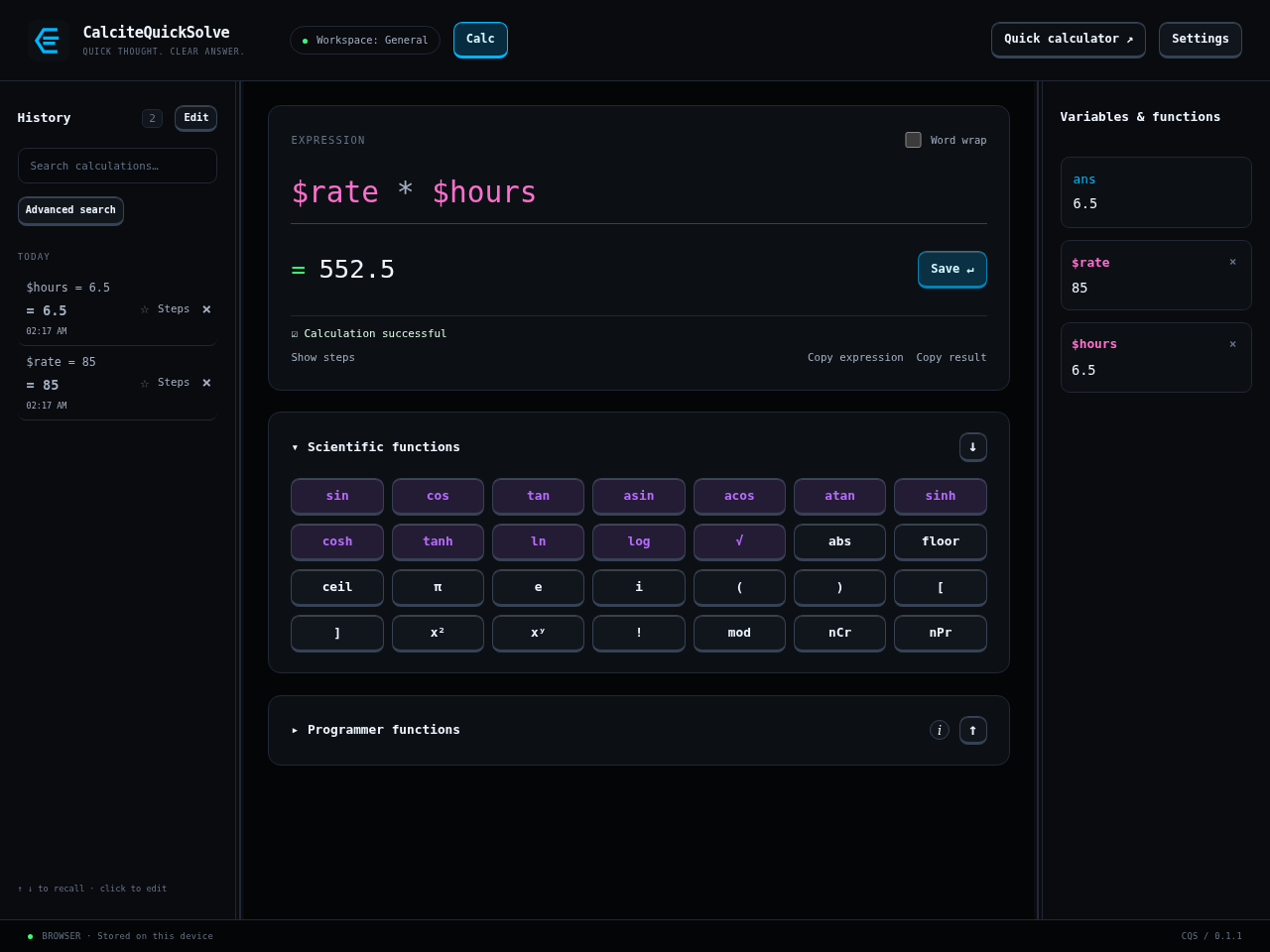
Define a function
Custom function names start with $, just like custom variables. Include $ when defining the function and every time you call it. Parameters local to the function stay bare.
- Use $rate for a saved variable, $cost(...) for a custom function, and hours for a local function parameter.
- Function bodies use the current saved variables and angle mode when called. Variables keep their assigned value until you update them.
- Custom names keep their case: use the same spelling and capitalization when calling a saved function.
$square(t) = t^2
$square(12)

$rate = 85
$cost(hours) = hours * $rate
$cost(6.5)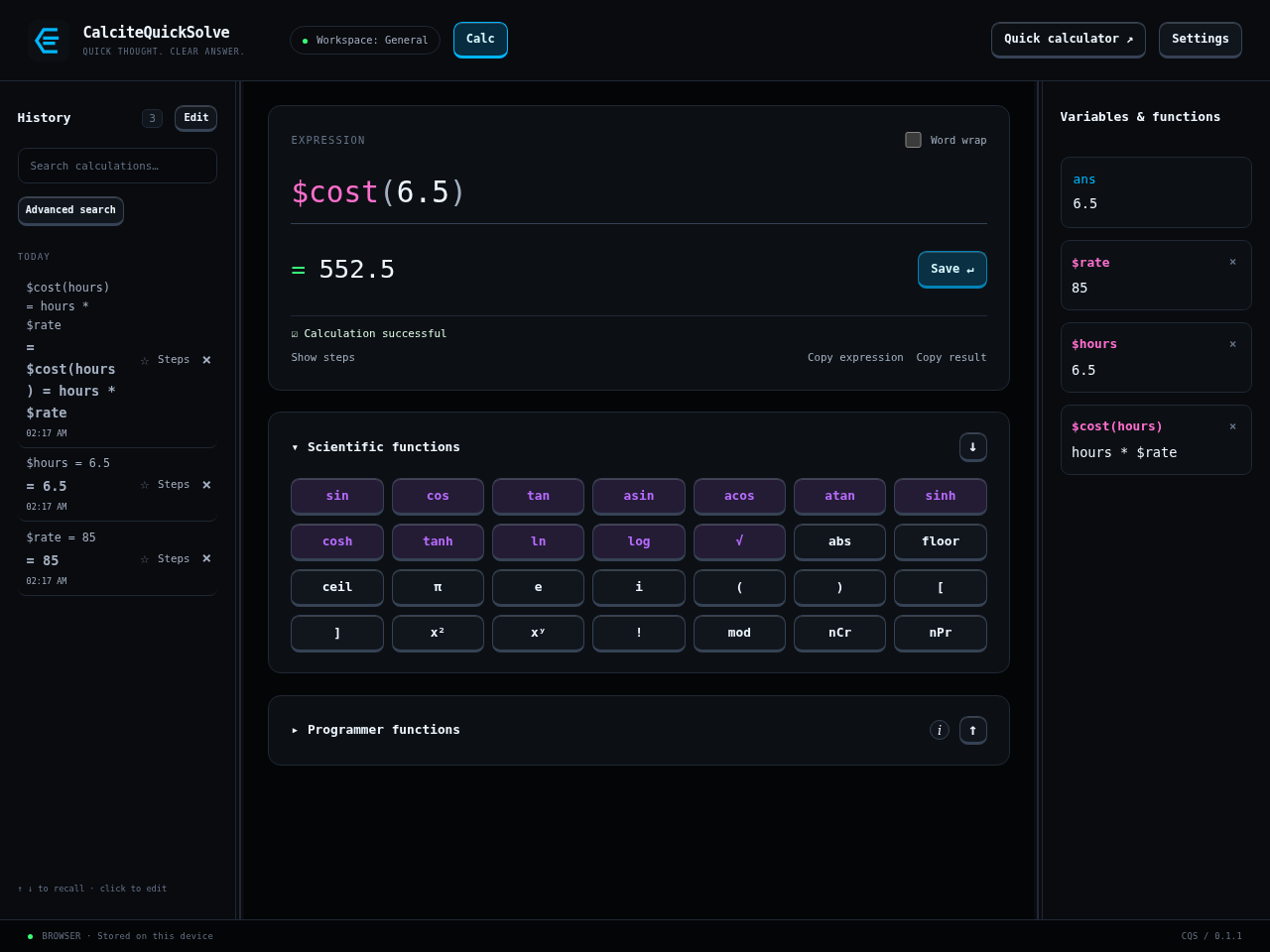
Reuse a result
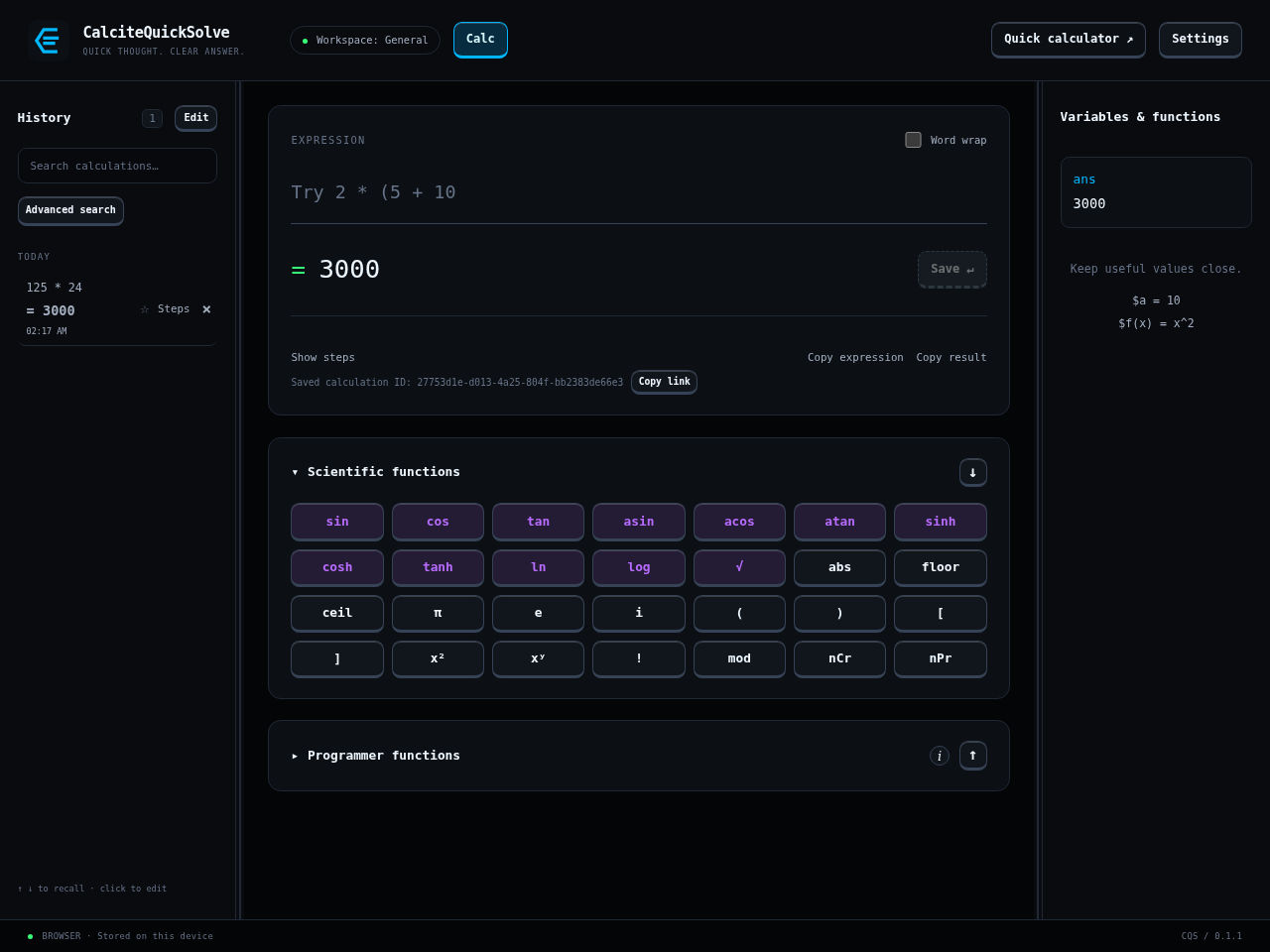
Use ans for the most recent result, recall an expression from history, or copy a result into another application. Pin useful entries so they are easier to find.
- After saving or recalling a calculation, its Saved calculation ID and Copy link appear beneath the Show steps, Copy expression, and Copy result actions.
- Copy link creates an internal reference to that saved calculation. The record must exist in the workspace where you open the link.
Understand the scope
Supported expressions can show a numerical evaluation trace. The app evaluates calculations and draws graphs; it does not provide symbolic equation solving.